Step 1 Pick One and Open It
Press Preview on any card to see the page full size, or Use this to open it with the code next to the preview. Try the Phone and Tablet buttons: every template is made to fit a 320px phone as well as a big screen.
12 templates · HTML + CSS
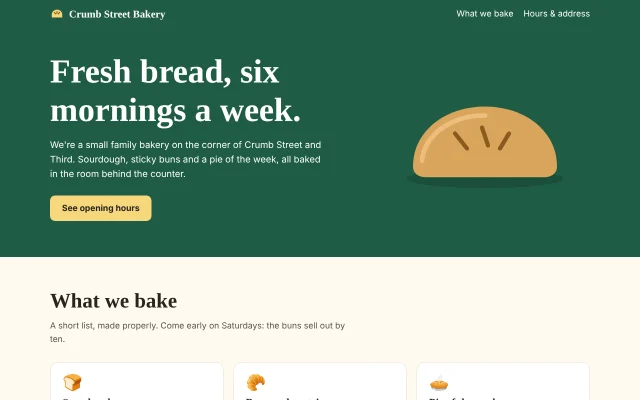
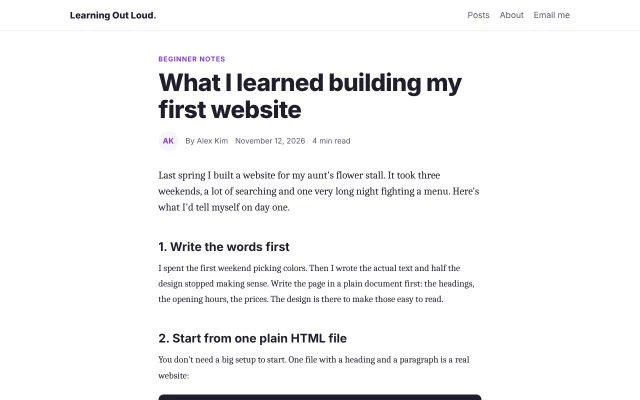
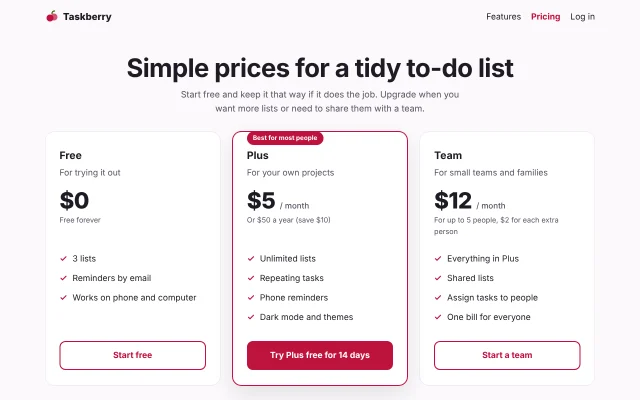
Simple, finished pages you can copy: a landing page, a portfolio, a resume, a cafe menu, a newsletter and more. Each one is a single HTML file with its CSS inside, no frameworks and nothing loaded from other sites. Preview it, put in your name and color, then download it. Free for personal and client work.
12 templates
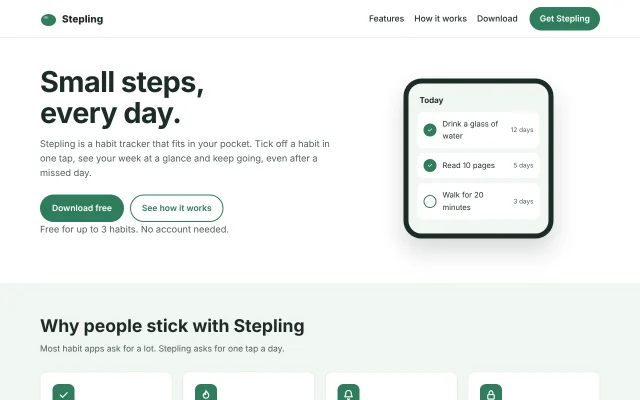
A one-page site for a small app, with features, steps and a download button.
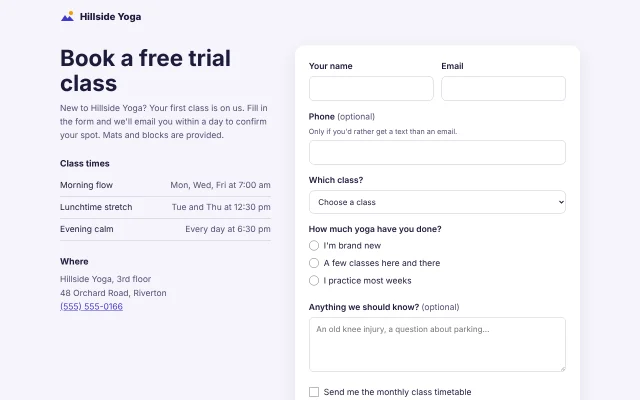
A booking form with labels, a dropdown, radio buttons and a message box.
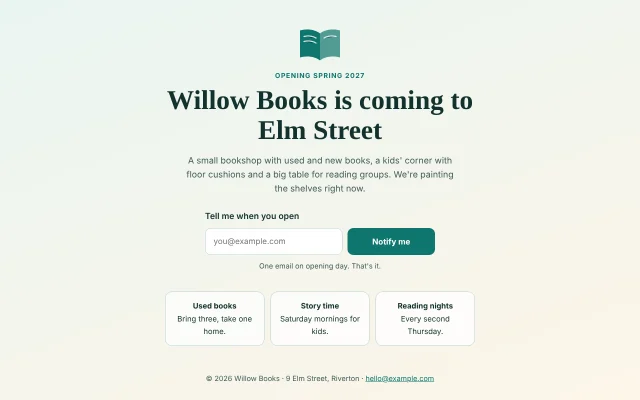
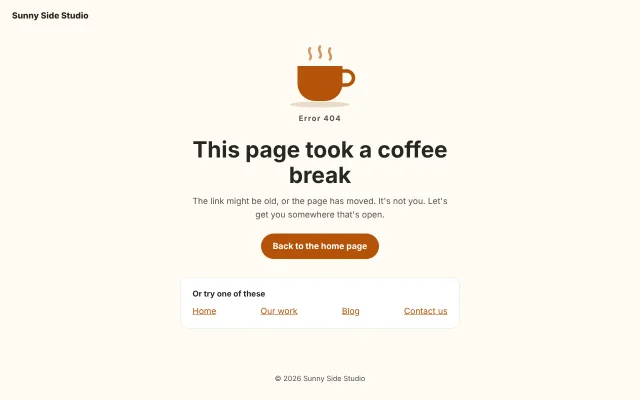
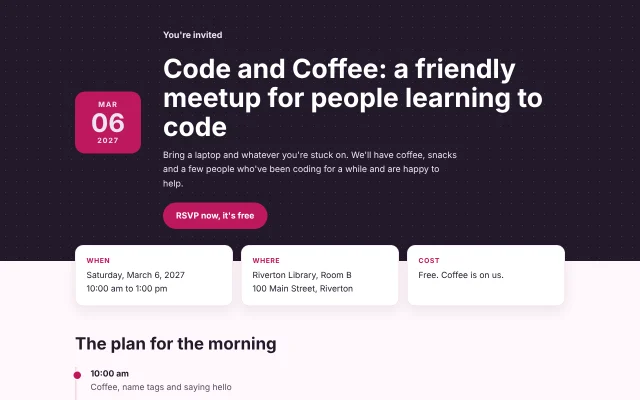
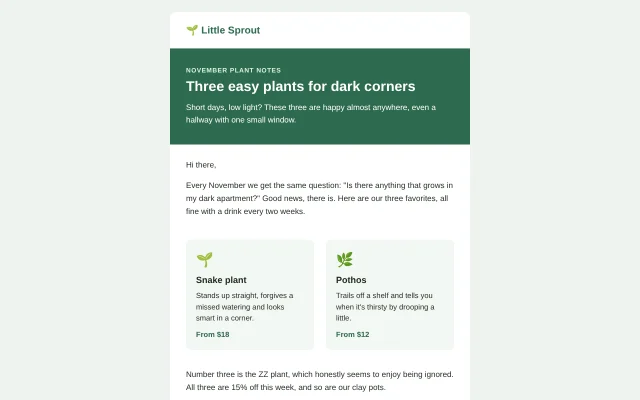
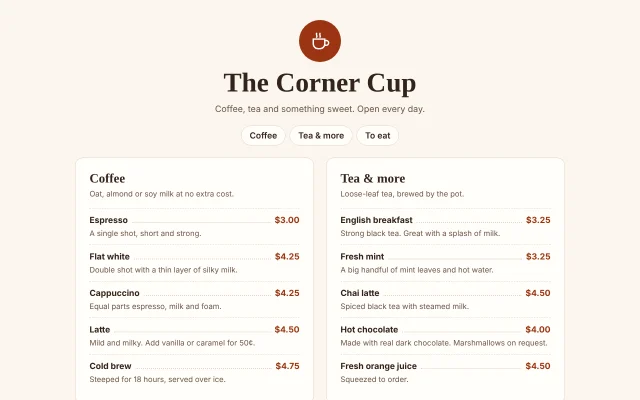
An HTML template is a finished page you copy and fill in with your own words, instead of starting from a blank file. The layout, spacing and colors are done. You change "The Corner Cup" to the name of your cafe, swap the prices, and you have a menu page.
Every template here is a single .html file. The HTML is the content, and the CSS that styles it sits
in a <style> block at the top of the same file. A tiny piece of the coffee menu looks like this:
<header>
  <h1>The Corner Cup</h1>
</header>
<main>
  <h2>Coffee</h2>
  <p>Flat white <strong>$4.25</strong></p>
</main>
The tags say what each part is (<header>, <main>, a heading, a paragraph),
and the CSS decides how it looks. Comments like <!-- Menu --> mark each section, so you can
find your way around.
Press Preview on any card to see the page full size, or Use this to open it with the code next to the preview. Try the Phone and Tablet buttons: every template is made to fit a 320px phone as well as a big screen.
Type your site's name in Site name and pick an Accent color. The code updates as you go, so you can see exactly which lines changed. The text on buttons switches between white and near-black on its own, whichever reads better on your color.
Press Download .html, then double-click the file. It opens in your browser straight from your computer, no server needed. Open the same file in a text editor (Notepad, TextEdit in plain text mode, or a code editor) to change it.
Find a line, type over it, save, and reload the browser tab:
<!-- Before -->
<h1>Small steps, every day.</h1>

<!-- After -->
<h1>Fresh flowers, every Saturday.</h1>
All the colors live in one :root block at the top of the CSS. Change a value there and every
button, link and icon that uses it follows:
:root {
  --accent: #2f855a;
}
The rest of the CSS uses that color through var(), which is why one edit is enough:
.btn {
  background: var(--accent);
}
Edits on this page aren't saved. Download the file or copy the code before you close the tab, or press Open in HTML Editor to keep working there.
The templates don't load any outside images (that keeps them fast and private), so you add your own. Put the
picture in a folder next to your file and point an <img> tag at it:
<img src="photos/latte.jpg"
     alt="A latte with a heart drawn in the foam"
     width="800" height="600">
The alt text is read out by screen readers and shown if the image doesn't load, so describe the
picture in a few plain words. width and height stop the page jumping around while it
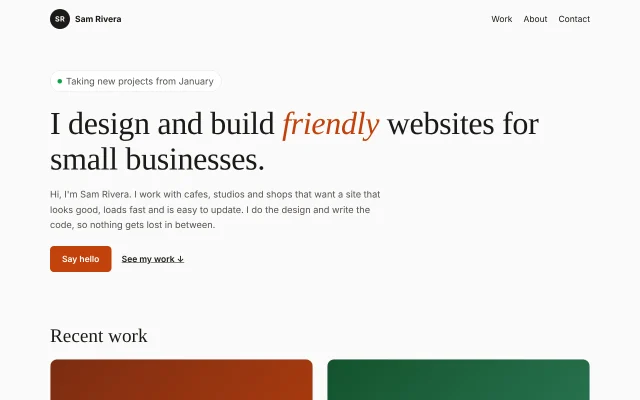
loads. In the portfolio, the colored blocks are stand-ins for screenshots:
<!-- Before: a colored block -->
<div class="shot shot-1" role="img" aria-label="...">The Corner Cup</div>

<!-- After: your screenshot -->
<img src="work/corner-cup.png" alt="The Corner Cup menu page on a phone">
The HTML image tutorial covers paths, sizes and the "why isn't my picture showing?" checklist.
A site is just a few HTML files in one folder. Copy the template, rename the copy (say menu.html),
and change what's inside. Keep the file names lowercase with no spaces:
my-site/
  index.html
  menu.html
  photos/
    latte.jpg
Then link the pages to each other with normal links. Put the same menu on every page:
<nav aria-label="Main">
  <a href="index.html">Home</a>
  <a href="menu.html">Menu</a>
</nav>
Name your front page index.html. That's the file a web host shows when someone visits your address.
Because each template is a plain HTML file, any static web hosting works. There's no database or server code to set up. Most hosts let you upload a folder (some let you drag it onto a web page), and many have a free plan that's plenty for a small site. Once it's up, you get an address you can share, and you can connect your own domain name later if you buy one.
Forms are the one thing to sort out first. A form needs somewhere to send its answers, so set the form's
action to the address of a form service or your own server. Until then, the contact and
coming-soon forms have action="#", and a comment in the code says so.
background line you can paste over a plain color, like the bakery's green hero.
--font in :root. The templates use fonts that are
already on your visitor's device, so nothing extra has to download.
padding, gap and
border-radius. Bigger numbers mean more air and rounder corners.
:root {
  --font: Georgia, "Times New Roman", serif;
}After a few rounds of edits it's easy to leave a tag open or a picture without alt text. Three quick checks catch most of it:
<div> that
never closes. All twelve templates pass it as they come.
The newsletter looks old-fashioned under the hood, and that's on purpose. Email apps are much pickier than
browsers: many ignore modern layout CSS, some strip the <style> block, and none run scripts.
So the newsletter uses tables for layout, puts its styles inline on each tag, and stays 600px wide:
<table role="presentation" width="600" cellpadding="0" cellspacing="0">
  <tr>
    <td style="padding:24px; font-family:Arial, sans-serif; color:#273127;">
      Hi Sam, your plants are on their way.
    </td>
  </tr>
</table>
role="presentation" tells screen readers the table is only there for layout, so they read the text
and skip the rows and cells. Since the colors are written out on each tag, the accent swap changes every copy of
the color (so it won't let you pick a color the email already uses for something else, like white). Before you send it, paste it into the HTML Email Viewer to see it in
mobile width, dark mode and with images off, plus a list of common email problems.
Yes. We wrote these templates, and you're free to use them, change them and use them for personal sites or client work, as many times as you like. No credit or link back is needed. Please don't resell them as a template pack of your own. The names, shops and people in them (Stepling, The Corner Cup, Sam Rivera and the rest) are made up, so replace them with your own.
Yes. You can use them, change them and put them on as many sites as you like, for yourself or for paying clients. You don't need to credit us or keep a link back, and there's nothing to sign up for.
Yes. Download it, change the words, colors and pictures, and hand it over. The only thing you can't do is sell the templates as they are, as a template pack of your own.
No. Each template is one .html file with its CSS in a <style> block at the top. Double-click the file and it opens in your browser. There's nothing to install, and they don't load anything from other sites: no web fonts, no icon libraries, no outside images.
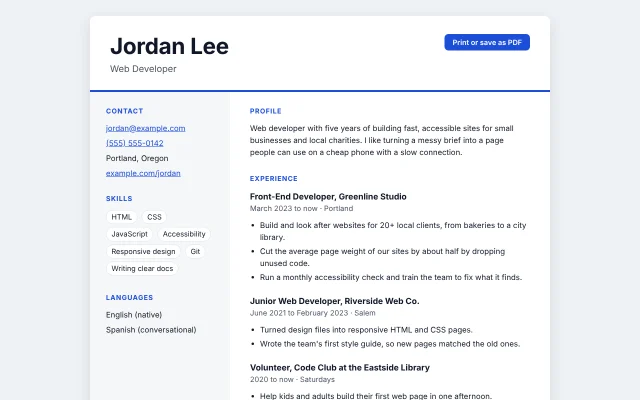
Most small sites don't need it. Menus, question lists (<details>), forms and print layouts all work with plain HTML and CSS. Two templates have a few lines of script: the landing page turns its menu into a Menu button on phones, and the resume shows a Print button. Both pages still work with JavaScript off.
Find --font in the :root block at the top of the file and put a different font list there, for example --font: Georgia, serif;. The templates use fonts that are already on your visitor's device, so the page loads fast. If you want a web font, add its <link> tag in the <head> and put its name first in the list.
Put the image file next to your .html file (or in a photos folder) and add an img tag where you want it, like <img src="photos/latte.jpg" alt="A latte with a heart in the foam">. Write alt text that says what the picture shows. In the portfolio, swap each colored block for an img tag.
We built it with Outlook's quirks in mind: tables, inline styles, a fixed 600px width for Outlook on Windows, a button that doesn't depend on padding around a link, and solid background colors as a fallback. But we haven't tested it in every Outlook version, and every email app differs a little. Rounded corners, for example, won't show in older Outlook. Check it in the HTML Email Viewer, then send a test to yourself in the apps your readers use before you send it to your list.
No. Edits in the code box and the name and color you pick are kept only while the page is open. Press Download .html or Copy code to keep them, or Open in HTML Editor to carry on there (the editor remembers your code in this browser).
Any static web hosting works, since each template is a plain HTML file. Upload it as index.html (the file a site shows first), plus any pictures. Many hosts have a free plan and let you drag a folder onto a web page to publish it.